
Welcome to the Aspose.Words for JasperReports documentation!
Aspose.Words for JasperReports is the only known solution on the market
that makes possible exporting reports from JasperReports and JasperServer to
Microsoft Word document formats. All report features are converted with the
highest degree of precision to Microsoft Word documents.
JasperReports and JasperServer do not have built-in abilities to export reports as Microsoft Word
documents (apart from the RTF format that uses positioned items), but using
Aspose.Words for JasperReports, you will get access to the following additional
export formats:
·
DOC – Word document via Aspose.Words
·
DOCX – Office Open XML (OOXML) document
via Aspose.Words
·
RTF – Rich Text Format via Aspose.Words
·
ODT – OpenDocument Text via
Aspose.Words
·
HTML – Web page via Aspose.Words
·
TXT – Plain text via Aspose.Words
Aspose.Words for JasperReports is built on top of Aspose.Words for Java,
the world-class library for server-side Microsoft Word documents processing.
Use with JasperReports
Aspose.Words for JasperReports provides a set of classes that extend the
JRAbstractExporter class. Therefore, Aspose.Words exporter classes can
be used in the same way as all other standard exporters in your application.
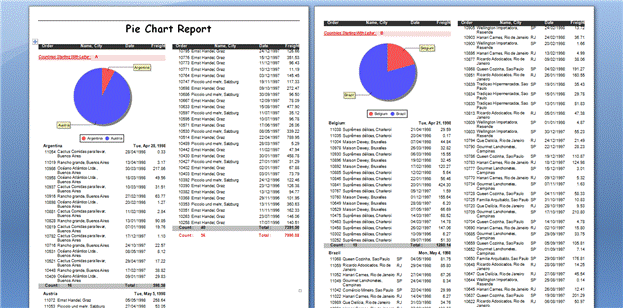
A DOC file generated by Aspose.Words for JasperReports from the Pie
Chart sample report.
Use with JasperServer
Aspose.Words
for JasperReports can be integrated with JasperServer to add DOC, DOCX, HTML,
and TXT to the list of available formats. You just need to configure
JasperServer as described futher in this documentation. After that, you will
see additional export format buttons available when viewing reports.
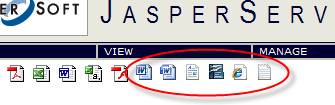
Additional export formats (icons on the right) available after
installing Aspose.Words for JasperReports on JasperServer.
Integration with JasperReports
To use
Aspose.Words for JasperReports from your application, copy aspose.words.jasperreports.jar from the \lib folder of aspose.words.jasperreports.zip
to the JasperReports\lib directory or to a library folder of your
application. After that, you can access the exporters programmatically.
The following example shows typical code needed to export a report to a
DOC file using Aspose.Words for JasperReports. More examples can be found in
the demo reports included in the product download.
import com.aspose.words.jasperreports.*;
AWDocExporter exporter = new AWDocExporter();
File sourceFile = new File(fileName);
JasperPrint jasperPrint =
(JasperPrint)JRLoader.loadObject(sourceFile);
exporter.setParameter(JRExporterParameter.JASPER_PRINT,
jasperPrint);
File destFile = new File(sourceFile.getParent(), jasperPrint.getName()
+ ".doc");
exporter.setParameter(JRExporterParameter.OUTPUT_FILE_NAME,
destFile.toString());
exporter.exportReport();
To add
DOC, DOCX, RTF, ODT, HTML and TXT export formats to JasperServer, perform the
following steps. In all of the following steps <InstallDir>
stands for the JasperServer installation directory.
Step 1. Add the following new exporter
properties to the <InstallDir>\apache-tomcat\webapps\jasperserver\WEB-INF\flows\viewReportBeans.xml
file.
<bean id="aw_reportDocExporter" class="com.aspose.words.jasperreports.AWReportDocExporter" parent="baseReportExporter">
<property name="exportParameters" ref="aw_exportParameters"/>
<property name="setResponseContentLength" value="true"/>
</bean>
<bean id="aw_reportDocxExporter" class="com.aspose.words.jasperreports.AWReportDocxExporter" parent="baseReportExporter">
<property name="exportParameters" ref="aw_exportParameters"/>
<property name="setResponseContentLength" value="true"/>
</bean>
<bean id="aw_reportRtfExporter" class="com.aspose.words.jasperreports.AWReportRtfExporter" parent="baseReportExporter">
<property name="exportParameters" ref="aw_exportParameters"/>
<property name="setResponseContentLength" value="true"/>
</bean>
<bean id="aw_reportOdtExporter" class="com.aspose.words.jasperreports.AWReportOdtExporter" parent="baseReportExporter">
<property name="exportParameters" ref="aw_exportParameters"/>
<property name="setResponseContentLength" value="true"/>
</bean>
<bean id="aw_reportHtmlExporter" class="com.aspose.words.jasperreports.AWReportHtmlExporter" parent="baseReportExporter">
<property name="exportParameters" ref="aw_exportParameters"/>
<property name="setResponseContentLength" value="true"/>
</bean>
<bean id="aw_reportTxtExporter" class="com.aspose.words.jasperreports.AWReportTxtExporter" parent="baseReportExporter">
<property name="exportParameters" ref="aw_exportParameters"/>
<property name="setResponseContentLength" value="true"/>
</bean>
<bean id="aw_docExporterConfiguration" class="com.jaspersoft.jasperserver.war.action.ExporterConfigurationBean">
<property name="descriptionKey" value="DOC
– Word Document via Aspose.Words"/>
<property name="iconSrc" value="/images/aw_doc.gif"/>
<property name="parameterDialogName" value=""/>
<property name="exportParameters" ref="aw_exportParameters"/>
<property name="currentExporter" ref="aw_reportDocExporter"/>
</bean>
<bean id="aw_docxExporterConfiguration" class="com.jaspersoft.jasperserver.war.action.ExporterConfigurationBean">
<property name="descriptionKey" value="OOXML
– Office Open Document via Aspose.Words"/>
<property name="iconSrc" value="/images/aw_docx.gif"/>
<property name="parameterDialogName" value=""/>
<property name="exportParameters" ref="aw_exportParameters"/>
<property name="currentExporter" ref="aw_reportDocxExporter"/>
</bean>
<bean id="aw_rtfExporterConfiguration" class="com.jaspersoft.jasperserver.war.action.ExporterConfigurationBean">
<property name="descriptionKey" value="RTF
– Rich Text Format via Aspose.Words"/>
<property name="iconSrc" value="/images/aw_rtf.gif"/>
<property name="parameterDialogName" value=""/>
<property name="exportParameters" ref="aw_exportParameters"/>
<property name="currentExporter" ref="aw_reportRtfExporter"/>
</bean>
<bean id="aw_odtExporterConfiguration" class="com.jaspersoft.jasperserver.war.action.ExporterConfigurationBean">
<property name="descriptionKey" value="ODT
– OpenDocument Text via Aspose.Words"/>
<property name="iconSrc" value="/images/aw_odt.gif"/>
<property name="parameterDialogName" value=""/>
<property name="exportParameters" ref="aw_exportParameters"/>
<property name="currentExporter" ref="aw_reportOdtExporter"/>
</bean>
<bean id="aw_htmlExporterConfiguration" class="com.jaspersoft.jasperserver.war.action.ExporterConfigurationBean">
<property name="descriptionKey" value="HTML
– Web Page via Aspose.Words"/>
<property name="iconSrc" value="/images/aw_html.gif"/>
<property name="parameterDialogName" value=""/>
<property name="exportParameters" ref="aw_exportParameters"/>
<property name="currentExporter" ref="aw_reportHtmlExporter"/>
</bean>
<bean id="aw_txtExporterConfiguration" class="com.jaspersoft.jasperserver.war.action.ExporterConfigurationBean">
<property name="descriptionKey" value="TXT
– Plain Text via Aspose.Words"/>
<property name="iconSrc" value="/images/aw_txt.gif"/>
<property name="parameterDialogName" value=""/>
<property name="exportParameters" ref="aw_exportParameters"/>
<property name="currentExporter" ref="aw_reportTxtExporter"/>
</bean>
Step 2. Locate the <util:map
id=”exporterConfigMap> element in the <InstallDir>\apache-tomcat\webapps\jasperserver\WEB-INF\flows\viewReportBeans.xml
file and add the following lines:
<util:map id="exporterConfigMap">
<entry key="pdf" value-ref="pdfExporterConfiguration"/>
<entry key="xls" value-ref="xlsExporterConfiguration"/>
<entry key="rtf" value-ref="rtfExporterConfiguration"/>
<entry key="csv" value-ref="csvExporterConfiguration"/>
<entry key="swf" value-ref="swfExporterConfiguration"/>
<!--
START of ADDED LINES -->
<entry
key="aw_doc" value-ref="aw_docExporterConfiguration"/>
<entry
key="aw_docx" value-ref="aw_docxExporterConfiguration"/>
<entry
key="aw_rtf" value-ref="aw_rtfExporterConfiguration"/>
<entry
key="aw_odt" value-ref="aw_odtExporterConfiguration"/>
<entry
key="aw_html" value-ref="aw_htmlExporterConfiguration"/>
<entry
key="aw_txt" value-ref="aw_txtExporterConfiguration"/>
<!--
END of ADDED LINES -->
</util:map>
Step 3. Copy all *.GIF images from the \lib
folder of aspose.words.jasperreports.zip to <InstallDir>\apache-tomcat\webapps\jasperserver\images\.
Step 4. Copy aspose.words.jasperreports.jar
from the \lib folder of aspose.words.jasperreports.zip to <InstallDir>\apache-tomcat\webapps\jasperserver\WEB-INF\lib\.
Step 5. Add the following lines to the <InstallDir>\apache-tomcat\webapps\jasperserver\WEB-INF\applicationContext.xml
file.
This
bean may contain various configuration settings intended to configure the
export. For example, you can use the JasperReports font mapping feature or
specify the location of the Aspose.Words for JasperReports license file.
<bean id="aw_exportParameters" class="com.aspose.words.jasperreports.AWExportParametersBean">
<property name="fontMap">
<util:map id="fontMap">
<entry key="sansserif" value="Arial"/>
<entry key="serif" value="Times
New Roman"/>
<entry key="monospaced" value="Courier"/>
</util:map>
</property>
<!--
Uncomment to apply a license. Check the license path.
<property name="licenseFile"
value="C:/jasperserver-3.0/apache-tomcat/webapps/jasperserver/WEB-INF/Aspose.Words.JasperReports.lic"/>
-->
</bean>
Step
6. Run JasperServer and open any report to view. If
the previous steps were performed properly, you will see the additional format
icons available.
New export formats available (on the right) after installing
Aspose.Words for JasperReports on JasperServer.
Aspose.Words for JasperReports is available for free, time unlimited
evaluation from the download page. The evaluation and licensed versions of the
product is the same download.
When you are happy with the evaluation version, you can purchase a
license. Make sure you understand and agree to the subscription terms.
The license will be available for download from the order page after the
order was paid. The license is a clear text, digitally signed XML file. The
license contains information such as the client name, the purchased product and
the type of the license. Do not modify the content of the license file, as it
will invalidate the license.
There are several ways available to activate a license:
·
Call setLicense
·
Set an exporter parameter in the code
·
Set an exporter parameter in applicationContext.xml
Call setLicense
This
method is applicable for use with JasperReports.
Download the license to your computer and copy it to the appropriate
folder (for example your application’s folder or JasperReports\lib).
Add the following code to your project.
import com.aspose.words.jasperreports.*;
// Create a stream object containing the license file
FileInputStream fstream = new FileInputStream("C:\\Aspose.Words.JasperReports.lic");
// Set the license through the stream object
License license = new License();
license.setLicense(fstream);
Set the licenseFile Exporter Parameter in Code
This
method is applicable for use with JasperReports.
Download the license to your computer and copy it to the appropriate
folder (for example your application’s folder or JasperReports\lib).
Add the following code to your project.
import com.aspose.words.jasperreports.*;
AWDocExporter exporter = new AWDocExporter();
exporter.setParameter(AWExporterParameter.LICENSE, "Aspose.Words.JasperReports.lic");
exporter.exportReport();
Set the licenseFile Exporter Parameter in
applicationContext.xml
This
method is applicable for use with JasperServer.
Download the license to your computer and copy it to the <InstallDir>\apache-tomcat\webapps\jasperserver\WEB-INF
folder, where <InstallDir> stands for the JasperServer
installation directory.
Locate
the <InstallDir>\apache-tomcat\webapps\jasperserver\WEB-INF\applicationContext.xml file and add the following lines:
<bean id="aw_exportParameters" class="com.aspose.words.jasperreports.AWExportParametersBean">
<property name="licenseFile" value="C:/jasperserver-3.0/apache-tomcat/webapps/jasperserver/WEB-INF/Aspose.Words.JasperReports.lic"/>
</bean>
Verify the License Works
Export
any report to DOC or DOCX format and check if the report contains an evaluation
message. If there is no evaluation message, then the license is woking
properly.
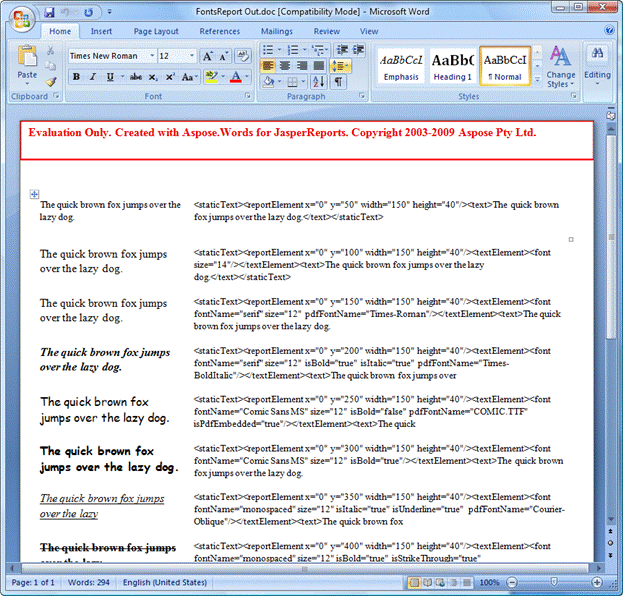
Aspose.Words for JasperReports injects a watermark when working in the
evaluation mode.
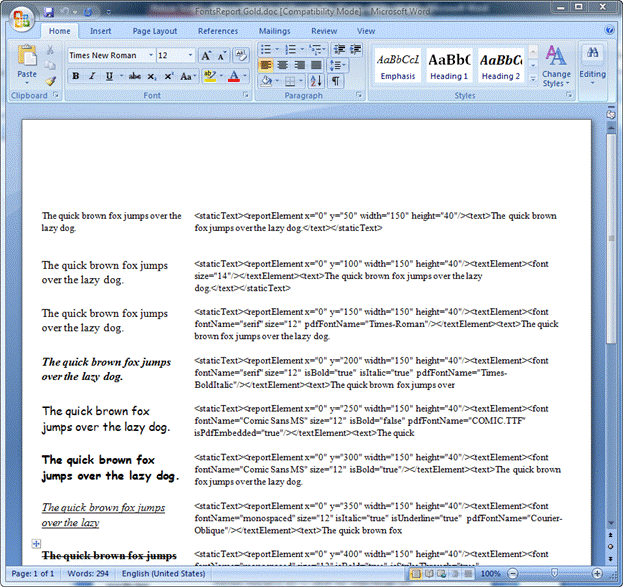
When a valid license is activated, there will be no evaluation
watermark.
Aspose.Words
for JasperReports includes a number of demo projects to help you get started
exporting reports to Microsoft Word document formats from your application. The
demos provided with Aspose.Words for JasperReports are standard JasperReports
demos, but they were modified to demonstrate the
usage of new exporters.
To run Aspose.Words for JasperReports demos perform the following steps:
1.
Download JasperReports from http://sourceforge.net/project/showfiles.php?group_id=36382&package_id=28579. Make sure to download the entire archived project with the source code
and demos, not just a single JAR.
2.
Unpack the archived project to some
location on your hard disk, for example C:\.
3.
Copy all demo folders from the \demo
folder of aspose.words.jasperreports.zip to <InstallDir>\jasperreports\demo\samples,
where <InstallDir> is the location you have unpacked JasperReports
to. This step is required because demo build scripts rely on the JasperReports’
folder structure, otherwise you will need to modify build scripts.
4.
Copy aspose.words.jasperreports.jar
from the \lib folder of aspose.words.jasperreports.zip to <InstallDir>\jasperreports\lib.
5.
Download the ANT tool from http://ant.apache.org/bindownload.cgi. Unpack the ANT tool and set up environment variables as described in
the tool’s manual.
6.
Change the current directory to <InstallDir>\demo\hsqldb
and run the following command line:
ant
runServer
7.
Change the current directory to one of
the Aspose.Words for JasperReports demos, for example <InstallDir>\demo\samples\charts.aw
and run the following commands in the command line:
ant javac - to compile the java source files of the test application
ant compile - to compile the XML report design and produce the .jasper file
ant fill - to fill the compiled report design with data and produce the .jrprint
file
8.
Run one or more of the following
commands in the command line:
·
ant doc - to produce a DOC file from the demo report
·
ant docx - to produce a DOCX file from the demo report
·
ant rtf - to produce an RTF file from the demo report
·
ant odt - to produce an ODT file from the demo report
·
ant html - to produce an HTML file from the demo report
·
ant txt - to produce a TXT file from the demo report
9.
Open one of the resulting documents to
view, for example <InstallDir>\demo\samples\charts.aw\AreaChartReport.doc
in Microsoft Word or another application.