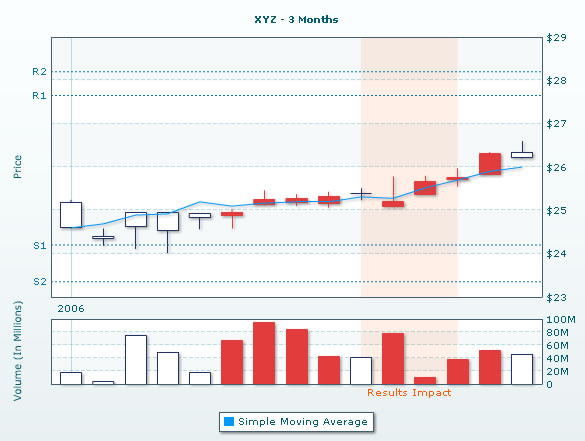
|
animation |
Boolean |
0/1 |
This attribute lets you set the configuration whether the chart should appear in an animated fashion. If you do not want to animate any part of the chart, set this as 0. |
|
plotPriceAs |
String |
CANDLESTICK, LINE OR BAR |
This attribute lets you configure how your price chart would be plotted as. You can use either of the three options - CANDLESTICK, BAR or LINE |
|
plotClosingPrice |
Boolean |
1/0 |
If you've opted to plot the price chart as line, this attribute lets you configure whether the closing price will be used for plot or opening price. |
|
palette |
Number |
1-5 |
FusionCharts v3 introduces the concept of Color Palettes. Each chart has 5 pre-defined color palettes which you can choose from. Each palette renders the chart in a different color theme. Valid values are 1-5. |
| paletteColors |
String |
List of hex color codes separated by comma |
While the palette attribute allows to select a palette theme that applies to chart background, canvas, font and tool-tips, it does not change the colors of data items (i.e., column, line, pie etc.). Using paletteColors attribute, you can specify your custom list of hex colors for the data items. The list of colors have to be separated by comma e.g., <chart paletteColors='FF0000,0372AB,FF5904...'>. The chart will cycle through the list of specified colors and then render the data plot accordingly.
To use the same set of colors throughout all your charts in a web application, you can store the list of palette colors in your application globally and then provide the same in each chart XML. |
| showAboutMenuItem |
Boolean |
0/1 |
Setting this to 1 shows up a custom context menu in the chart, which can be customized to show your text and can be linked to your URL. For e.g., you can set the context menu of the chart to include "About your company name" and then link to your company home page. By default, the chart shows "About FusionCharts" when right clicked. |
| aboutMenuItemLabel |
String |
|
The menu item label for the custom context menu item. |
| aboutMenuItemLink |
String |
URL |
Link for the custom context menu item. You can specify the link in FusionCharts link format to be able to open the same in new window, pop-ups, frames or as JavaScript links. |
|
showVolumeChart |
Boolean |
1/0 |
If you want to hide volume chart, you can use this attribute. |
|
volumeHeightPercent |
Number |
(In Percent) |
Height of the volume chart in percent (with respect to total chart). By default, it's set to 40%. Range is between 20-80%. |
|
xAxisMinValue |
Number |
Numeric Value |
The candlestick chart has both x and y axis as numeric. This attribute lets you explicitly set the x-axis lower limit. If you do not specify this value, FusionCharts will automatically calculate the best value for you. |
|
xAxisMaxValue |
Number |
Numeric Value |
The candlestick chart has both x and y axis as numeric. This attribute lets you explicitly set the x-axis upper limit. If you do not specify this value, FusionCharts will automatically calculate the best value for you. |
|
PYAxisMaxValue |
Number |
|
This attribute helps you explicitly set the upper limit of the price chart. If you don't specify this value, it is automatically calculated by FusionCharts based on the data provided by you. |
|
PYAxisMinValue |
Number |
|
This attribute helps you explicitly set the lower limit of the price chart. If you don't specify this value, it is automatically calculated by FusionCharts based on the data provided by you. |
|
VYAxisMinValue |
Number |
|
Lower limit for the volume chart axis. If you do not specify this, FusionCharts wll automatically calculate for you. |
|
VYAxisMaxValue |
Number |
|
Upper limit for the volume chart axis. If you do not specify this, FusionCharts wll automatically calculate for you. |
|
showLabels |
Boolean |
0/1 |
It sets the configuration whether the x-axis labels will be displayed or not. |
|
labelDisplay |
String |
WRAP, STAGGER, ROTATE or NONE |
Using this attribute, you can control how your data labels (x-axis labels) would appear on the chart. There are 4 options: WRAP, STAGGER, ROTATE or NONE. WRAP wraps the label text if it's longer than the allotted area. ROTATE rotates the label in vertical or slanted position. STAGGER divides the labels into multiple lines. |
|
rotateLabels |
Boolean |
0/1 |
This attribute lets you set whether the data labels would show up as rotated labels on the chart. |
|
slantLabels |
Boolean |
0/1 |
If you've opted to show rotated labels on chart, this attribute lets you set the configuration whether the labels would show as slanted labels or fully vertical ones. |
|
labelStep |
Number |
1 or above |
By default, all the labels are displayed on the chart. However, if you've a set of streaming data (like name of months or days of week), you can opt to hide every n-th label for better clarity. This attributes just lets you do so. It allows to skip every n(th) X-axis label. |
|
staggerLines |
Number |
2 or above |
If you've opted for STAGGER mode as labelDisplay, using this attribute you can control how many lines to stagger the label to. By default, all labels are displayed in a single line. |
|
showYAxisValues |
Boolean |
0/1 |
FusionCharts y-axis is divided into vertical sections using div (divisional) lines. Each div line assumes a value based on its position. Using this attribute you can set whether to show those div line (y-axis) values or not. |
|
yAxisValuesStep |
Number |
1 or above |
By default, all div lines show their values. However, you can opt to skip every x(th) div line value using this attribute. |
|
adjustDiv |
Boolean |
0/1 |
FusionCharts automatically tries to adjust divisional lines and limit values based on the data provided. However, if you want to set your explicit lower and upper limit values and number of divisional lines, first set this attribute to false. That would disable automatic adjustment of divisional lines. |
|
rotateYAxisName |
Boolean |
0/1 |
If you do not wish to rotate y-axis name, set this as 0. It specifically comes to use when you've special characters (UTF8) in your y-axis name that do not show up in rotated mode. |
|
yAxisNameWidth |
Number |
(In Pixels) |
If you opt to not rotate y-axis name, you can choose a maximum width that will be applied to y-axis name. |
|
defaultAnimation |
Boolean |
0/1 |
By default, each chart animates some of its elements. If you wish to switch off the default animation patterns, you can set this attribute to 0. It can be particularly useful when you want to define your own animation patterns using STYLE feature. |
|
clickURL |
String |
|
The entire chart can now act as a hotspot. Use this URL to define the hotspot link for the chart. The link can be specified in FusionCharts Link Format. |
|
setAdaptiveYMin |
Boolean |
0/1 |
This attribute lets you set whether the y-axis lower limit would be 0 or should the y-axis lower limit adapt itself to a different figure based on values provided to the chart. |
|
showBorder |
Boolean |
0/1 |
Whether to show a border around the chart or not? |
|
borderColor |
Color |
|
Border color of the chart. |
|
borderThickness |
Number |
In Pixels |
Border thickness of the chart. |
|
borderAlpha |
Number |
0-100 |
Border alpha of the chart. |
|
bgColor |
Color |
|
This attribute sets the background color for the chart. You can set any hex color code as the value of this attribute. To specify a gradient as background color, separate the hex color codes of each color in the gradient using comma. Example: FF5904,FFFFFF. Remember to remove # and any spaces in between. See the gradient specification page for more details. |
|
bgAlpha |
Number |
0-100 |
Sets the alpha (transparency) for the background. If you've opted for gradient background, you need to set a list of alpha(s) separated by comma. See the gradient specification page for more details. |
|
bgRatio |
Number |
0-100 |
If you've opted for a gradient background, this attribute lets you set the ratio of each color constituent. See the gradient specification page for more details. |
|
bgAngle |
Number |
0-360 |
Angle of the background color, in case of a gradient. See the gradient specification page for more details. |
|
bgSWF |
String |
|
To place any Flash movie as background of the chart, enter the (path and) name of the background SWF. It should be in the same domain as the chart. |
|
bgSWFAlpha |
Number |
0-100 |
Helps you specify alpha for the loaded background SWF. |
|
canvasBgColor |
Color |
|
Sets Canvas background color. For Gradient effect, enter colors separated by comma. |
|
canvasBgAlpha |
Number |
|
Sets alpha for Canvas Background. For gradient, enter alpha list separated by commas. |
|
canvasBgRatio |
Number |
0-100 |
Helps you specify canvas background ratio for gradients. |
|
canvasBgAngle |
Number |
|
Helps you specify canvas background angle in case of gradient. |
|
canvasBorderColor |
Color |
|
Lets you specify canvas border color. |
|
canvasBorderThickness |
Number |
0-5 |
Lets you specify canvas border thickness. |
|
canvasBorderAlpha |
Number |
0-100 |
Lets you control transparency of canvas border. |
| logoURL |
String |
URL |
You can load an external logo (JPEG/PNG/SWF) on the chart once it has rendered. This attribute lets you specify the URL of the same. Owing to Flash Player security settings, you can only specify logo that are on the sub-domain as the SWF file of the chart. |
| logoPosition |
String |
TL, TR, BL, BR, CC |
Where to position the logo on the chart:
- TL - Top-left
- TR - Top-right
- BR - Bottom right
- BL - Bottom left
- CC - Center of screen
|
| logoAlpha |
Number |
0-100 |
Once the logo has loaded on the chart, you can configure its opacity using this atribute. |
| logoScale |
Number |
0-300 |
You can also change the scale of externally loaded logo at run-time by specifying a value for this parameter. |
| logoLink |
String |
URL |
If you want to link the logo to an external URL, specify the link in this attribute. The link can be in FusionCharts link format, allowing you to link to new windows, pop-ups, frames etc. |
|
bearBorderColor
|
Color
|
Hex Color
|
Border color for the bear candles/lines/bars.
|
|
bearFillColor
|
Color
|
Hex Color
|
Fill color for the bear candles/lines/bars.
|
|
bullBorderColor
|
Color
|
Hex Color
|
Border color for the bull candles/lines/bars.
|
|
bullFillColor
|
Color
|
Hex Color
|
Fill color for the bull candles/lines/bars.
|
|
rollOverBandColor
|
Color
|
Hex Color
|
When you hover your mouse over any candle on the chart, you'll see a colored band moving with your mouse. This attribute lets you set the color of that band
|
|
rollOverBandAlpha
|
Number
|
0-100
|
Lets you set the alpha of the color band.
|
|
showShadow
|
Boolean
|
0/1
|
Whether to show shadow for the candles and the volume bars?
|
|
showVPlotBorder
|
Boolean
|
1/0
|
Whther to show plot border for the volume chart?
|
|
vPlotBorderColor
|
Color
|
Hex Color
|
Border color for the volume chart bars.
|
|
vPlotBorderThickness
|
Number
|
In Pixels
|
Thickness of border of the volume chart bars.
|
|
vPlotBorderAlpha
|
Number
|
0-100
|
Alpha of border of the volume chart bars.
|
|
plotLineThickness
|
Number
|
In Pixels
|
Thickness of the lines on the chart, if you're plotting the price chart as lines.
|
|
plotLineAlpha
|
Number
|
0-100
|
Alpha of the lines on the chart.
|
|
plotLineDashLen
|
Number
|
In Pixels
|
If the lines are to be shown as dashes, this attribute defines the length of dash.
|
|
plotLineDashGap
|
Number
|
In Pixels
|
If the lines are to be shown as dashes, this attribute defines the length of dash gap.
|
|
showLegend |
Boolean |
0/1 |
Whether to show legend for the chart (only if there are trend-sets on the chart)? |
|
legendPosition |
String |
BOTTOM or RIGHT |
The legend can be plotted at two positions on the chart - below the chart (BOTTOM) and on the RIGHT side of the chart. |
| legendCaption |
String |
|
You can add a caption for the entire legend by setting the same here. |
| legendMarkerCircle |
Boolean |
0/1 |
Whether to use square legend keys or circular ones? |
|
legendBgColor |
Color |
Hex Code |
Background color for the legend. |
|
legendBgAlpha |
Number |
0-100 |
Background alpha for the legend. |
|
legendBorderColor |
Color |
Hex Code |
Border Color for the legend. |
|
legendBorderThickness |
Number |
In Pixels |
Border thickness for the legend. |
|
legendBorderAlpha |
Number |
0-100 |
Border alpha for the legend. |
|
legendShadow |
Boolean |
0/1 |
Whether to show a shadow for legend? |
|
legendAllowDrag |
Boolean |
0/1 |
The legend can be made drag-able by setting this attribute to 1. End viewers of the chart can drag the legend around on the chart. |
|
legendScrollBgColor |
Color |
Hex Code |
If you've too many items on the legend, a scroll bar shows up on the same. This attribute lets you configure the background color of the scroll bar. |
|
legendScrollBarColor |
Color |
Hex Code |
If you've too many items on the legend, a scroll bar shows up on the same. This attribute lets you configure the bar color of the scroll bar. |
|
legendScrollBtnColor |
Color |
Hex Code |
If you've too many items on the legend, a scroll bar shows up on the same. This attribute lets you configure the color of buttons of the scroll bar. |
| reverseLegend |
Boolean |
0/1 |
You can reverse the ordering of datasets in the legend by setting this attribute to 1. |
|
formatNumber
|
Boolean
|
0/1
|
This configuration determines whether the numbers displayed on the price chart will be formatted using commas, e.g., 40,000 if formatNumber='1' and 40000 if formatNumber='0 '
|
|
formatNumberScale
|
Boolean
|
0/1
|
Configuration whether to add K (thousands) and M (millions) to a number after truncating and rounding it - e.g., if formatNumberScale is set to 1, 1043 would become 1.04K (with decimals set to 2 places). Same with numbers in millions - a M will added at the end. For more details, please see Advanced Number Formatting section.
|
|
defaultNumberScale
|
String
|
|
The default unit of the numbers that you're providing to the price chart. For more details, please see Advanced Number Formatting section.
|
|
numberScaleUnit
|
String
|
|
Unit of each block of the scale. For more details, please see Advanced Number Formatting section.
|
|
numberScaleValue
|
String
|
|
Range of the various blocks that constitute the scale. For more details, please see Advanced Number Formatting section.
|
|
numberPrefix
|
String
|
Character
|
Using this attribute, you could add prefix to all the numbers visible on the price chart. For example, to represent all dollars figure on the chart, you could specify this attribute to ' $' to show like $40000, $50000. For more details, please see Advanced Number Formatting section.
|
|
numberSuffix
|
String
|
Character
|
Using this attribute, you could add suffix to all the numbers visible on the price chart. For example, to represent all figure quantified as per annum on the chart, you could specify this attribute to ' /a' to show like 40000/a, 50000/a. For more details, please see Advanced Number Formatting section.
|
|
decimalSeparator
|
String
|
Character
|
This option helps you specify the character to be used as the decimal separator in a number. For more details, please see Advanced Number Formatting section.
|
|
thousandSeparator
|
String
|
Character
|
This option helps you specify the character to be used as the thousands separator in a number. For more details, please see Advanced Number Formatting section.
|
|
inDecimalSeparator
|
String
|
Character
|
In some countries, commas are used as decimal separators and dots as thousand separators. In XML, if you specify such values, it will give a error while converting to number. So, FusionCharts accepts the input decimal and thousand separator from user, so that it can covert it accordingly into the required format. This attribute lets you input the decimal separator. For more details, please see Advanced Number Formatting section.
|
|
inThousandSeparator
|
String
|
Character
|
In some countries, commas are used as decimal separators and dots as thousand separators. In XML, if you specify such values, it will give a error while converting to number. So, FusionCharts accepts the input decimal and thousand separator from user, so that it can covert it accordingly into the required format. This attribute lets you input the thousand separator. For more details, please see Advanced Number Formatting section.
|
|
decimals
|
Number
|
0-10
|
Number of decimal places to which all numbers on the price chart would be rounded to.
|
|
forceDecimals
|
Boolean
|
0-1
|
Whether to add 0 padding at the end of decimal numbers? For example, if you set decimals as 2 and a number is 23.4. If forceDecimals is set to 1, FusionCharts will convert the number to 23.40 (note the extra 0 at the end)
|
|
yAxisValueDecimals
|
Number
|
0-10
|
If you've opted to not adjust div lines, you can specify the div line values decimal precision using this attribute.
|
|
vFormatNumber
|
Boolean
|
0/1
|
This configuration determines whether the numbers belonging to volume chart will be formatted using commas, e.g., 40,000 if vFormatNumber='1' and 40000 if vFormatNumber='0 '
|
|
vFormatNumberScale
|
Boolean
|
0/1
|
Configuration whether to add K (thousands) and M (millions) to a number belonging to volume chart after truncating and rounding it - e.g., if vFormatNumberScale is set to 1, 10434 would become 1.04K (with vDecimals set to 2 places). Same with numbers in millions - a M will added at the end. For more details, please see Advanced Number Formatting section.
|
|
vDefaultNumberScale
|
String
|
|
The default unit of the numbers belonging to volume chart. For more details, please see Advanced Number Formatting section.
|
|
vNumberScaleUnit
|
String
|
|
Unit of each block of the scale of volume chart. For more details, please see Advanced Number Formatting section.
|
|
vNumberScaleValue
|
String
|
|
Range of the various blocks that constitute the scale for volume chart. For more details, please see Advanced Number Formatting section.
|
|
vNumberPrefix
|
String
|
Character
|
Using this attribute, you could add prefix to all the numbers belonging to volume chart. For more details, please see Advanced Number Formatting section.
|
|
vNumberSuffix
|
String
|
Character
|
Using this attribute, you could add prefix to all the numbers belonging to volume chart. For more details, please see Advanced Number Formatting section.
|
|
vDecimals
|
Number
|
0-10
|
Number of decimal places to which all numbers belonging to volume chart would be rounded to.
|
|
captionPadding |
Number |
In Pixels |
This attribute lets you control the space (in pixels) between the sub-caption and top of the chart canvas. If the sub-caption is not defined, it controls the space between caption and top of chart canvas. If neither caption, nor sub-caption is defined, this padding does not come into play. |
|
yAxisNamePadding |
Number |
In Pixels |
Using this, you can set the distance between the right end of y-axis title and the start of y-axis values (or canvas, if the y-axis values are not to be shown). |
|
yAxisValuesPadding |
Number |
In Pixels |
This attribute helps you set the horizontal space between the canvas left edge and the y-axis values or trend line values (on left/right side). This is particularly useful, when you want more space between your canvas and y-axis values. |
|
labelPadding |
Number |
In Pixels |
This attribute sets the vertical space between the labels and canvas bottom edge. If you want more space between the canvas and the x-axis labels, you can use this attribute to control it. |
|
chartLeftMargin |
Number |
In Pixels |
Amount of empty space that you want to put on the left side of your chart. Nothing is rendered in this space. |
|
chartRightMargin |
Number |
In Pixels |
Amount of empty space that you want to put on the right side of your chart. Nothing is rendered in this space. |
|
chartTopMargin |
Number |
In Pixels |
Amount of empty space that you want to put on the top of your chart. Nothing is rendered in this space. |
|
chartBottomMargin |
Number |
In Pixels |
Amount of empty space that you want to put on the bottom of your chart. Nothing is rendered in this space. |
|
valuePadding |
Number |
In Pixels |
It sets the vertical space between the end of candlesticks and start of value textboxes. This basically helps you control the space you want between your candlesticks and the value textboxes. |
|
legendPadding |
Number |
In Pixels |
Padding of legend from right/bottom side of canvas |
|
canvasPadding |
Number |
(In Pixels) |
Padding between the canvas left margin and 1st candlestick. Also refers to padding between the canvas right edge and the last candlestick. |
|
plotSpacePercent |
Number |
(In Percent) |
Helps you set the total space on the canvas in percentage. The higher you set this, the thinner would be your candles on the chart. |
| canvasLeftMargin |
Number |
In Pixels |
This attribute lets you control the space between the start of chart canvas and the start (x) of chart. In case of 2D charts, the canvas is the visible rectangular box. In case of 3D charts, the canvas box is the imaginary box around the 3D canvas.
Using this attribute, you can control the amount of empty space between the chart left side and canvas left side. By default, FusionCharts automatically calculates this space depending on the elements to be placed on the chart. However, if you want to over-ride this value with a higher value, you can use this attribute to specify the same. Please note that you cannot specify a margin lower than what has been calculated by the chart.
This attribute is particularly useful, when you've multiple charts placed in a page and want all their canvas start position to align with each other - so in such a case, you can set same margin value (a value large enough that it doesn't get rejected by chart owing to it being lower than the calculated value) for all such charts in the page. |
| canvasRightMargin |
Number |
In Pixels |
Like canvasLeftMargin, this attribute lets you set the space between end of canvas and end of chart. |
| canvasTopMargin |
Number |
In Pixels |
Like canvasLeftMargin, this attribute lets you set the space between top of canvas and top of chart. |
| canvasBottomMargin |
Number |
In Pixels |
Like canvasLeftMargin, this attribute lets you set the space between bottom of canvas and bottom of chart. |
|
open
|
Number
|
|
Opening price for the set.
|
|
close
|
Number
|
|
Closing price for the set.
|
|
high
|
Number
|
|
Highest price point reached for the set.
|
|
low
|
Number
|
|
Lowest price point reached for the set.
|
|
volume
|
Number
|
|
Volume of transaction. If you do not specify volume for any of the sets, FusionCharts wouldn't plot the volume chart at the bottom.
|
|
x
|
Number
|
Numeric Value
|
X-axis value for the plot. The candlestick point will be placed horizontally on the x-axis based on this value.
|
|
valuetext
|
String
|
|
If you want to show a text label above a candlestick, you can assignt the text to this attribute.
|
|
color
|
Color
|
|
If you need to highlight a particular candlestick, you can assisgn a color to that particular set using this attribute.
|
|
bordercolor
|
Color
|
|
If you need to highlight a particular candlestick, you can assisgn a border color to that particular set using this attribute.
|
|
alpha
|
Number
|
|
Alpha of the particular set.
|
|
dashed
|
Boolean
|
|
Whether to show this set as dashed?
|
|
link
|
String
|
|
You can define links for individual data items. That enables the end user to click on candlesticks and drill down to other pages. To define the link for data items, use the link attribute.
You can define links that open in same window, new window, pop-up window or frames. Please see "Advanced Charting > Drill Down Charts" for more information.
Also, you'll need to URL Encode all the special characters (like ? and &) present in the link.
|
|
toolText
|
String
|
|
By default, FusionCharts shows the series Name, Category Name and value as tool tip text for that data item. But, if you want to display more information for the data item as tool tip, you can use this attribute to specify the same.
|
|
startValue
|
Number
|
Numeric Value
|
The starting value for the trendline. Say, if you want to plot a slanted trendline from value 102 to 109, the startValue would be 102.
|
|
endValue
|
Number
|
Numeric Value
|
The ending y-axis value for the trendline. Say, if you want to plot a slanted trendline from value 102 to 109, the endValue would be 109. If you do not specify a value for endValue, it would automatically assume the same value as startValue.
|
|
displayValue
|
String
|
|
If you want to display a string caption for the trend line by its side, you can use this attribute. Example: displayValue='Last Month High'. When you don't supply this attribute, it automatically takes the value of startValue.
|
|
color
|
String
|
Hex Code
|
Color of the trend line and its associated text.
|
|
isTrendZone
|
Boolean
|
0/1
|
Whether the trend would display a line, or a zone (filled colored rectangle).
|
|
showOnTop
|
Boolean
|
0/1
|
Whether the trend line/zone would be displayed over data plots or under them?
|
|
thickness
|
Number
|
In Pixels
|
If you've opted to show the trend as a line, this attribute lets you define the thickness of trend line.
|
|
alpha
|
Number
|
0-100
|
Alpha of the trend line.
|
|
dashed
|
Boolean
|
0/1
|
If you've opted to show the trend as a line, this attribute lets you define whether the trend line would appear as dashed?
|
|
dashLen
|
Number
|
In Pixels
|
If you've opted to show trend line as dash, this attribute lets you control the length of each dash.
|
|
dashGap
|
Number
|
In Pixels
|
If you've opted to show trend line as dash, this attribute lets you control the length of each dash gap.
|
|
startValue
|
Number
|
Numeric Value
|
The starting value for the trendline. Say, if you want to plot a slanted trendline from value 102 to 109, the startValue would be 102.
|
|
endValue
|
Number
|
Numeric Value
|
The ending y-axis value for the trendline. Say, if you want to plot a slanted trendline from value 102 to 109, the endValue would be 109. If you do not specify a value for endValue, it would automatically assume the same value as startValue.
|
|
displayValue
|
String
|
|
If you want to display a string caption for the trend line by its side, you can use this attribute. Example: displayValue='Last Month High'. When you don't supply this attribute, it automatically takes the value of startValue.
|
|
color
|
String
|
Hex Code
|
Color of the trend line and its associated text.
|
|
isTrendZone
|
Boolean
|
0/1
|
Whether the trend would display a line, or a zone (filled colored rectangle).
|
|
thickness
|
Number
|
In Pixels
|
If you've opted to show the trend as a line, this attribute lets you define the thickness of trend line.
|
|
alpha
|
Number
|
0-100
|
Alpha of the trend line.
|
|
dashed
|
Boolean
|
0/1
|
If you've opted to show the trend as a line, this attribute lets you define whether the trend line would appear as dashed?
|
|
dashLen
|
Number
|
In Pixels
|
If you've opted to show trend line as dash, this attribute lets you control the length of each dash.
|
|
dashGap
|
Number
|
In Pixels
|
If you've opted to show trend line as dash, this attribute lets you control the length of each dash gap.
|
 Chart Image