Candlestick Chart > Overview
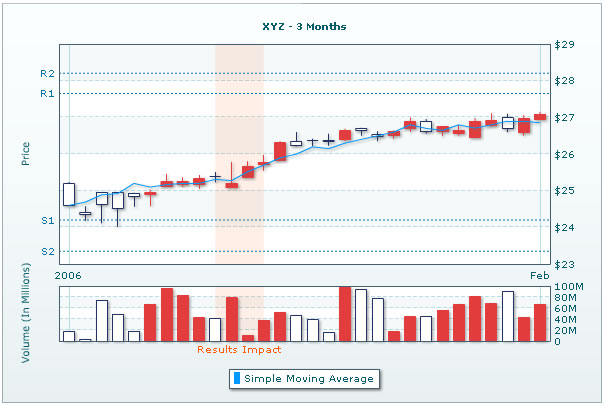
The candle stick chart from FusionCharts v3 PowerCharts suite offers your a powerful and interactive interface to plot your stock data. It offers the following features:
Features:
- Integrated price and volume plot. Volume plot can be turned on or off.
- Multiple options for price plotting - Candle stick / bar / line
- Interactive tool tip and customizable hover bar
- Allows you to plot trend lines and zones on the chart
- Apart from trend lines and zones, you can plot any number of custom trend sets on the chart. These trend sets can be customized to show any technical indicators.
- You can easily provide missing data using this chart.
- Any particular candle can be highlighted using color combination.
- Vertical indicator lines can be drawn at any point on x-axis.
Shown below is a basic candlestick chart:
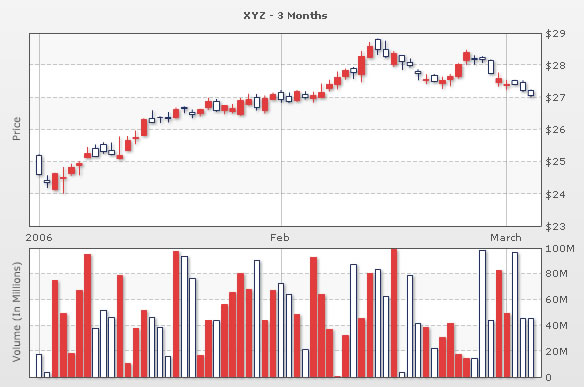
<chart palette='1' numPDivLines='5' caption='XYZ - 3 Months' numberPrefix='$' bearBorderColor='E33C3C' bearFillColor='E33C3C' bullBorderColor='1F3165' PYAxisName='Price' VYAxisName='Volume (In Millions)'>
<categories>
<category label='2006' x='1' />
<category label='Feb' x='31' />
<category label='March' x='59' />
</categories>
<dataset>
<set open='24.6' high='25.24' low='24.58' close='25.19' x='1' volume='17856350' />
<set open='24.36' high='24.58' low='24.18' close='24.41' x='2' volume='3599252' />
<set open='24.63' high='24.66' low='24.11' close='24.15' x='3' volume='74685351'/>
<set open='24.53' high='24.84' low='24.01' close='24.5' x='4' volume='49236987'/>
<set open='24.84' high='24.94' low='24.56' close='24.63' x='5' volume='18247006'/>
<set open='24.96' high='25.03' low='24.58' close='24.89' x='6' volume='67419690'/>
<set open='25.25' high='25.46' low='25.11' close='25.13' x='7' volume='95517555'/>
<set open='25.17' high='25.17' low='25.54' close='25.42' x='8' volume='38067037' />
<set open='25.31' high='25.25' low='25.61' close='25.53' x='9' volume='52104215' />
<set open='25.23' high='25.6' low='25.2' close='25.35' x='10' volume='46274157' />
<set open='25.2' high='25.78' low='25.07' close='25.09' x='11' volume='78602232'/>
<set open='25.66' high='25.8' low='25.35' close='25.37' x='12' volume='10338104' />
<set open='25.77' high='25.97' low='25.54' close='25.72' x='13' volume='38067037' />
<set open='26.31' high='26.35' low='25.81' close='25.83' x='14' volume='52104215' />
<set open='26.23' high='26.6' low='26.2' close='26.35' x='15' volume='46274157' />
<set open='26.37' high='26.42' low='26.21' close='26.37' x='16' volume='38820680' />
<set open='26.35' high='26.55' low='26.22' close='26.37' x='17' volume='16129652' />
<set open='26.63' high='26.69' low='26.35' close='26.39' x='18' volume='97571001' />
<set open='26.65' high='26.72' low='26.5' close='26.7' x='19' volume='94060216' />
<set open='26.48' high='26.62' low='26.35' close='26.53' x='20' volume='76679318' />
<set open='26.63' high='26.65' low='26.41' close='26.5' x='21' volume='16996305' />
<set open='26.89' high='26.99' low='26.61' close='26.7' x='22' volume='44321874' />
<set open='26.6' high='26.95' low='26.55' close='26.88' x='23' volume='43960880' />
<set open='26.75' high='26.76' low='26.4799' close='26.61' x='24' volume='56389598' />
<set open='26.65' high='26.795' low='26.5' close='26.57' x='25' volume='65885374' />
<set open='26.9' high='26.98' low='26.43' close='26.46' x='26' volume='80334457' />
<set open='26.92' high='27.11' low='26.74' close='26.77' x='27' volume='67736564' />
<set open='26.7' high='27.1' low='26.59' close='26.99' x='28' volume='90940814' />
<set open='26.98' high='27.06' low='26.5' close='26.59' x='29' volume='43864329' />
<set open='27.09' high='27.15' low='26.93' close='26.95' x='30' volume='67423833' />
<set open='26.95' high='27.23' low='26.85' close='27.15' x='31' volume='72850567' />
<set open='26.86' high='27.15' low='26.82' close='27.02' x='32' volume='64403260' />
<set open='27.18' high='27.229' low='26.85' close='26.9' x='33' volume='48743756' />
<set open='27' high='27.19' low='26.93' close='27.08' x='34' volume='21187163' />
<set open='27.06' high='27.17' low='26.83' close='26.96' x='35' volume='93178974' />
<set open='27.15' high='27.43' low='27.01' close='27.01' x='36' volume='64509025' />
<set open='27.42' high='27.55' low='27.18' close='27.29' x='37' volume='37035138' />
<set open='27.63' high='27.8' low='27.24' close='27.4' x='38' volume='646023' />
<set open='27.85' high='27.9' low='27.55' close='27.65' x='39' volume='32070283' />
<set open='27.78' high='27.95' low='27.57' close='27.91' x='40' volume='87341955' />
<set open='28.28' high='28.44' low='27.47' close='27.71' x='41' volume='45239561' />
<set open='28.6' high='28.72' low='28.22' close='28.25' x='42' volume='80164959' />
<set open='28.49' high='28.83' low='28.32' close='28.8' x='43' volume='83249540' />
<set open='28.27' high='28.76' low='28.22' close='28.48' x='44' volume='62784569' />
<set open='28.37' high='28.44' low='27.94' close='28.01' x='45' volume='98977467' />
<set open='28.13' high='28.3' low='27.85' close='28.3' x='46' volume='3436146' />
<set open='27.99' high='28.2' low='27.93' close='28.1' x='47' volume='78791315' />
<set open='27.74' high='27.88' low='27.53' close='27.81' x='48' volume='41775406' />
<set open='27.55' high='27.72' low='27.42' close='27.54' x='49' volume='38704178' />
<set open='27.51' high='27.73' low='27.47' close='27.7' x='50' volume='22619949' />
<set open='27.54' high='27.64' low='27.26' close='27.43' x='51' volume='30700181' />
<set open='27.67' high='27.73' low='27.35' close='27.57' x='52' volume='41938164' />
<set open='28.03' high='28.061' low='27.59' close='27.66' x='53' volume='17620228' />
<set open='28.39' high='28.48' low='28' close='28.16' x='54' volume='14180461' />
<set open='28.17' high='28.31' low='28.01' close='28.21' x='55' volume='14483710' />
<set open='28.19' high='28.28' low='28.07' close='28.24' x='56' volume='98558872' />
<set open='27.73' high='28.18' low='27.72' close='28.14' x='57' volume='44217363' />
<set open='27.58' high='27.77' low='27.33' close='27.45' x='58' volume='82623424' />
<set open='27.42' high='27.55' low='27.23' close='27.37' x='59' volume='49621258' />
<set open='27.41' high='27.55' low='27.4' close='27.52' x='60' volume='96426955' />
<set open='27.21' high='27.53' low='27.16' close='27.46' x='61' volume='45226989' />
<set open='27.05' high='27.25' low='27' close='27.21' x='62' volume='45226989' />
</dataset>
</chart>
The <chart> element is the root element of the candlestick chart, like any other chart in FusionCharts v3 framework. It has a lot of properties that set the functional and cosmetic behavior of the chart. You can find the complete list of properties in Chart XML Sheet section.
Next, you've the <categories> and <category> element which define the x-axis labels for the chart. Each label needs to have a x position value and label. You can also opt to show a vertical line for each category label.
FusionCharts Candlestick chart has both x-axis and y-axis as numeric. This chart doesn't directly accept dates for the data and category labels. Instead, it accepts a x-value for each data. This allows for greater flexibility as you can plot days, hours, weeks, months, years etc. using this chart.
Converting your dates into x-values is very simple. Using your server side script, select the first date in your chart as base date. Now, use date difference function (w.r.t to this base date) to get the x-values for each date. So, if you want to show daily quotes on the chart, you can use "day" as the date difference parameter. Similarly, if you want to show weekly quote, you can use weeks as the date difference parameter and so on.
Now, for each data, you need to provide the x-value, opening price, closing price, high and low price for the given time frame. If you're plotting a line chart for the price, you can choose which price to plot - opening or closing. Also, high and low prices are not required in case of line plot.
You can additionally provide the volume figure if you also want a volume chart to be plotted.
Advanced features in this chart include plotting of trend lines, trend sets (indicators) etc. as shown below: