


Overview

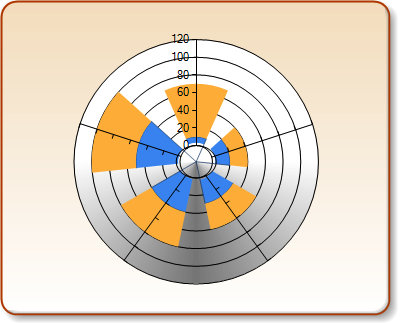
A Stacked Rose Chart is a circular graph, similar to the Rose chart, and used primarily as a data comparison tool. Unlike most other chart types, the Rose and Stacked Rose Chart chart types do not plot an X value. Instead, the Rose and Stacked Rose charts ignore the X values found in their data series, and plot only the Y values. However, even though X values are ignored, the X axis is still used to position the labels around the chart, as well as to calculate the spacings between each label as well as the overall size of the chart itself.
 |
|
Figure 1: A Stacked Rose Chart. |
The difference between a Rose chart, and a Stacked Rose chart is that the Rose chart plots each of its data series independently of each other simply overlaying one Series' data points over another. The Stacked Rose chart plots its data series in a contiguous manner so that all data is literally stacked in the display.
AreaDrawingStyle
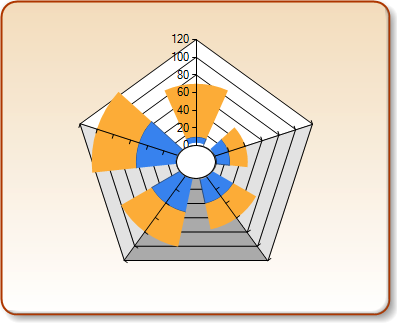
The shape of the Stacked Rose Chart area (which is the white area of the chart image) is set using its AreaDrawingStyle custom attribute. You can change the shape of this area by simply setting the value of this custom attribute to one of the valid shapes which include: Circle (the default), or Polygon. The Polygon AreaDrawingStyle shape is shown in Figure 2 below.
 |
|
Figure 2: A Stacked Rose Chart with its AreaDrawingStyle set to Polygon, its InnerRadius set to a value of 5, and its RoseDrawingStyle set to Area. |
Example
This sample demonstrates how to programmatically set the AreaDrawingStyle custom attribute of the chart to display the chart as a Polygon, as shown in Figure 2 above.
| Visual Basic |  Copy Code Copy Code |
|---|---|
Imports Dundas.Charting.WebControl
  ...

' The syntax used to set the drawing style.
Chart1.Series("Series1")("AreaDrawingStyle")="Polygon"
|
|
| C# | Copy Code |
|---|---|
|
|
RoseDrawingStyle
There are two styles used to draw the Rose chart. These styles are defined by RoseDrawingStyle custom attribute, which can be set to a value of Area, or Line. This custom attribute defines how a series is displayed within your Stacked Rose chart.
|
RoseDrawingStyle |
Description |
|
Area |
Setting to this value will cause the chart to use the Horizontal style if the number of sectors is low, otherwise a style value of Radial will be used. When this drawing style is used, the data that is within the data Series will be displayed as a solid filled area. |
|
Line |
Labels will be positioned in a circular fashion around the chart area, and the data that is within that data Series will be displayed as an area outline. |
Example
This example demonstrates how to set a chart's data Series' RoseDrawingStyle for each one of its two data Series. In this example we set the first data series, called "Series1", to display its data as an area. Then we set the chart's second data series, called "Series2", to display its data using lines.
| Visual Basic | Copy Code |
|---|---|
|
|
| C# | Copy Code |
|---|---|
|
|
Area3DStyle
The Stacked Rose Chart area does not support real 3D. The only property from the Area3DStyle object that affects the Stacked Rose Chart is the Enable3D property. By setting Enable3D to True, the drawing style of the area background changes to give the appearance of looking down on a 3D circle or polygon. No rotation, or any other 3D properties are applicable.
Axis Labels
The textual value for the axis labels can be explicitly set for the Stacked Rose Chart using the AxisLabel property for each data point. Alternatively, custom axis labels may be defined using the CustomLabels collection of the X axis. If custom labels are set, they have higher priority over any other labels. When using custom axis labels, only the Text property of the custom label, and its index in the collection are important. The To and From properties are ignored.
The X axis object can also be used to control the distance between the chart area and its circular labels by changing the X axis MajorTickmark.Size property.
Stacked Rose Chart Limitations
When using the Stacked Rose Chart, it is worthwhile to note that there is no support for StripLines, nor is there any support for Cursors, Zooming, or Scrolling.
|
Chart Details |
|
|---|---|
|
Number of Y values per point: |
1 |
|
Number of series: |
One |
|
Support markers: |
Yes |
|
Cannot be combined with: |
Doughnut, Pie, Bar |
|
Custom Attributes |
|---|